Description
 See on Steam
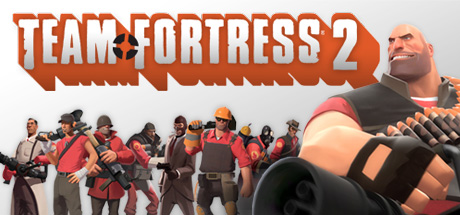
Team Fortress 2 is Valve's cult class-based multiplayer FPS. Fight in teams across varied game modes (Capture the Flag, Control Point, Payload...) playing as one of the game's nine iconic classes.
The game is free on Steam and supports multiplayer via dedicated servers, with a very active modding and configuration community since its release.
Team Fortress 2 offers an official dedicated server available on both Windows and Linux.
Hardware
Server OSWindows / Linux
Server RAM2 to 4 GB
Server storage~20 GB
Customer requirements
Minimal:
Operating systemWindows 7/Vista/XP, macOS or Linux (32/64-Bit)
Processor1.7 GHz or equivalent processor
RAM512 MB of memory
Graphics cardNvidia GeForce 8, ATI Radeon X1600 or equivalent performance (DirectX 8.1 compatible)
Disk space15 GB of available disk space
Recommended:
Operating systemWindows 7, macOS or Linux (32/64-Bit)
ProcessorPentium 4 3.0 GHz or equivalent processor
RAM1 GB of memory
Graphics cardNvidia GeForce 9800 GT or equivalent performance (DirectX 9.0c compatible)
Disk space15 GB of available disk space
Install
Deploying a server
Installing a Team Fortress 2 game server takes between 5 and 15 minutes, mainly due to the game server download time!
Steps:
1
Go to the page adding game server and fill in: host, game (Team Fortress 2), server name, game port (default 27015, a single port: game, Steam query and RCON) and access type (password, friends, public).
2
Wait a few minutes for the server to switch to the "Game server turned off" , then configure the Login Token, players, maps, SourceMod and bots at the bottom of the page.
Important : Team Fortress 2 requires a "Login Token" (Game Server Login Token / GSLT, a free Steam token tied to your account, obtained from the Steam game server management site) to start properly. Enter it in the "Game Server Login Token" field at the bottom of the page — the "start" button stays locked until it is filled in, and a server started without it crashes as soon as a player tries to connect.

Tips:
Check that the server port is open on the internet (UDP and TCP). You can test whether your ports are open directly from your game server's page, using the icon .
Settings
Customizing Server Settings
A number of game server settings can be changed directly from the site:
Server customization (basic)
Game Server Login Token
Steam Game Server Login Token (GSLT), required to start the server — see the "Important" box in the Installation tab
Admin password
RCON password, used for administration and player count
Maximum number of players
Allows you to choose the maximum number of simultaneous players on the server
Welcome message (MOTD)
Message shown to players when they join
Map management
Starting map
Map loaded when the server starts, among the official maps offered
Steam Workshop map
Optional: ID of a Steam Workshop map, which replaces the starting map
Map rotation
List of maps played after the starting map
Time per map
Play time on each map before moving to the next one
SourceMod mods
SourceMod
Installs the Metamod:Source + SourceMod base — no plugins are included by default, add your own afterwards to the tf/addons/sourcemod/plugins folder of your installation.
In-game administrators
SteamID64 of players who get full in-game admin rights (kick, ban, slay...)
TF2Dodgeball mod
Community Dodgeball game mode (requires SourceMod and a tfdb_ or db_ map)
Bots
Number of bots
Target player total (bots + humans): bots make room for players who join
Bot difficulty
Bot skill, from easy to expert
Other options may be added in the future, depending on needs.