Description
 See on Steam
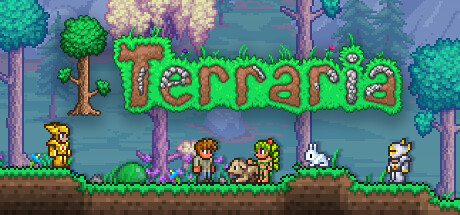
Terraria is a survival and exploration game developed by Re-Logic. Set in a procedurally generated 2D world, the game offers players a great deal of freedom to explore, build, fight, and craft a wide variety of items.
The player starts with few resources and must gradually gather materials, craft tools, build shelters, and face increasingly powerful creatures. Exploration is at the heart of the gameplay: caves, dungeons, jungles, oceans, and other biomes hide treasures, rare enemies, and secrets.
Terraria stands out for its vast array of weapons, armor, accessories, and bosses. Each victory unlocks new gear and grants access to more dangerous areas. The game also features highly developed building mechanics, allowing players to create houses, villages, or complex structures.
With its blend of action, survival, RPG, and creativity, Terraria has become a benchmark in the sandbox genre, enjoyed by players both in single-player and multiplayer cooperative modes.
Hardware
Server OSWindows / Linux
Server RAM2 GB or more
Server storage5 GB
Customer requirements
Minimal:
Operating systemWindows, macOS or Linux (64-Bit)
Processor2.0 GHz or equivalent processor
RAM2.5 GB of memory
Graphics card128 MB video memory with Shader Model 2.0+ support
Disk space200 MB of available disk space
Recommended:
Operating systemWindows, macOS or Linux (64-Bit)
ProcessorDual core 3.0 GHz or equivalent processor
RAM4 GB of memory
Graphics card256 MB video memory with Shader Model 2.0+ support
Disk space200 MB of available disk space
Install
Deploying a server
Installing a Terraria game server is quick: the server is only a few dozen MB to download.
Steps:
1
Go to the page adding game server and fill in: host, game (Terraria), server name, game port (7777 by default) and access type (Private, Friends or Public, the latter without a password).
2
Open the game port in TCP on your router/firewall.
3
Wait a moment for the server to reach the state "Game server turned off" , then set up the world at the bottom of your server page (see the Settings tab): size, seed and secret seed are only applied on first start, when the world is created.
4
Start your server (button "to start up") — on Windows, if a prompt asks you to install a dependency, accept it. All that's left is to play and invite your friends !
5
In game: Multiplayer, then Join via IP, and enter your host's public IP address, the server port and its password.

Tips:
Make sure the server port is open to the internet (TCP). You can test whether your ports are open directly from your game server's page, using the icon .
Settings
Customizing Server Settings
A number of game server settings can be changed directly from the website, whether the server is stopped or running. They apply on the next start.
Server customization (basic)
Password
Asked to players to join the server (none with Public access)
Maximum number of players
Allows you to choose the maximum number of simultaneous players on the server
Difficulty
Classic, Expert, Master or Journey
Server language
Language of the messages sent by the server (English, French, German, Spanish...)
World
World size
Small, medium or large
Seed
World generation code: the same seed gives the same world
Secret seed
Special worlds hidden in the game: Drunk World, For the Worthy, Not the Bees, Celebration, The Constant, No Traps, Don't Dig Up, or Zenith which combines them all
World creation
These settings are only read on first start: changing them afterwards has no effect on the existing world
Welcome & network
Welcome message
Shown in the chat to every player who joins.
Enemy synchronization
The smoother it is, the less enemies “skip” on screen, but the more bandwidth the server uses.
Other options may be added in the future, depending on needs.