Description
 See on Steam
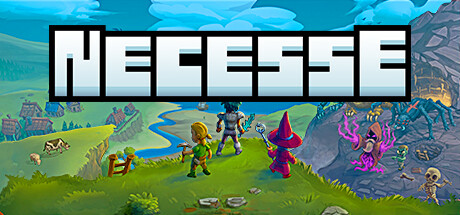
Necesse is an indie survival-adventure game developed by Fair Games ApS. The game combines exploration, building, crafting, and combat in a procedurally generated 2D world.
Players explore a vast world made up of diverse islands, each with its own biomes, resources, creatures, and dungeons. To progress, they must gather materials, craft equipment, build a base, and improve their skills in order to survive the many dangers.
One of Necesse's unique features is its colony system: players can recruit settlers to automate certain tasks, such as farming, crafting, or defending the base. This mechanic adds an element of management and strategy to the gameplay.
The game also features dynamic battles against powerful monsters and bosses, as well as a co-op mode that lets you play with others online. With its blend of survival, exploration, and management, Necesse offers a rich and accessible experience for fans of sandbox games.
Hardware
Server OSWindows / Linux
Server RAM2 to 4 GB
Server storage2 GB
Customer requirements
Minimal:
Operating systemWindows 10, macOS or Linux (64-Bit)
Processori3-4160, AMD FX-4350 or equivalent performance
RAM4 GB of memory
Graphics cardNvidia GeForce GT 440, Radeon HD 6570 or equivalent performance
Disk space500 MB of available disk space
Recommended:
Operating systemWindows 10, macOS or Linux (64-Bit)
Processori5-4590, Ryzen 3 2200G or equivalent performance
RAM8 GB of memory
Graphics cardGTX 650, Radeon HD 7750 or equivalent performance
Disk space500 MB of available disk space
Install
Deploying a server
Installing a Necesse game server takes between 5 and 10 minutes, mainly due to the game server download time!
Steps:
1
Go to the page adding game server and fill in: host, game (Necesse), server name, game port and access type (password, friends, public).
2
Wait a few minutes for the server to switch to the "Game server turned off" , then configure the server options at the bottom of the page (e.g.: maximum number of players).
Important : Necesse requires the in-game name of the server administrator to start. Enter it in the "Admin username" field at the bottom of the page — the "start" button stays locked until it is changed.
3
Start your server (button "to start up") — on Windows, if a prompt asks you to install a dependency, accept it. All that's left is to play and invite your friends !

Tips:
Check that the server port is open on the internet (UDP and TCP). You can test whether your ports are open directly from your game server's page, using the icon .
Settings
Customizing Server Settings
A number of game server settings can be changed directly from the site:
Server customization
Password
Allows you to join the game (single player)
Admin's in-game username
Allows you to grant administrator privileges to a player based on their in-game username
Maximum number of players
Allows you to choose the maximum number of simultaneous players on the server
Server
Welcome message (MOTD)
Message shown to players when they join
Pause when server is empty
Pauses the world while no player is connected
Extended client power
Lets clients validate part of their own actions (position, damage...) instead of the server
Difficulty
Difficulty
World setting, applied on the next start once the world exists
Death penalty
World setting, applied on the next start once the world exists
Raid frequency
World setting, applied on the next start once the world exists
World rules
Allow cheat commands
World setting, applied on the next start once the world exists
Player hunger
World setting, applied on the next start once the world exists
Disable mob spawns
World setting, applied on the next start once the world exists
Forced PvP
World setting, applied on the next start once the world exists
Other options may be added in the future, depending on needs.